Your profile picture, your name and username, your password and the notifications you receive are all managed from one page: Settings. This guide goes through each part of it, so you know what every field does and when your changes are saved.
Open Settings#
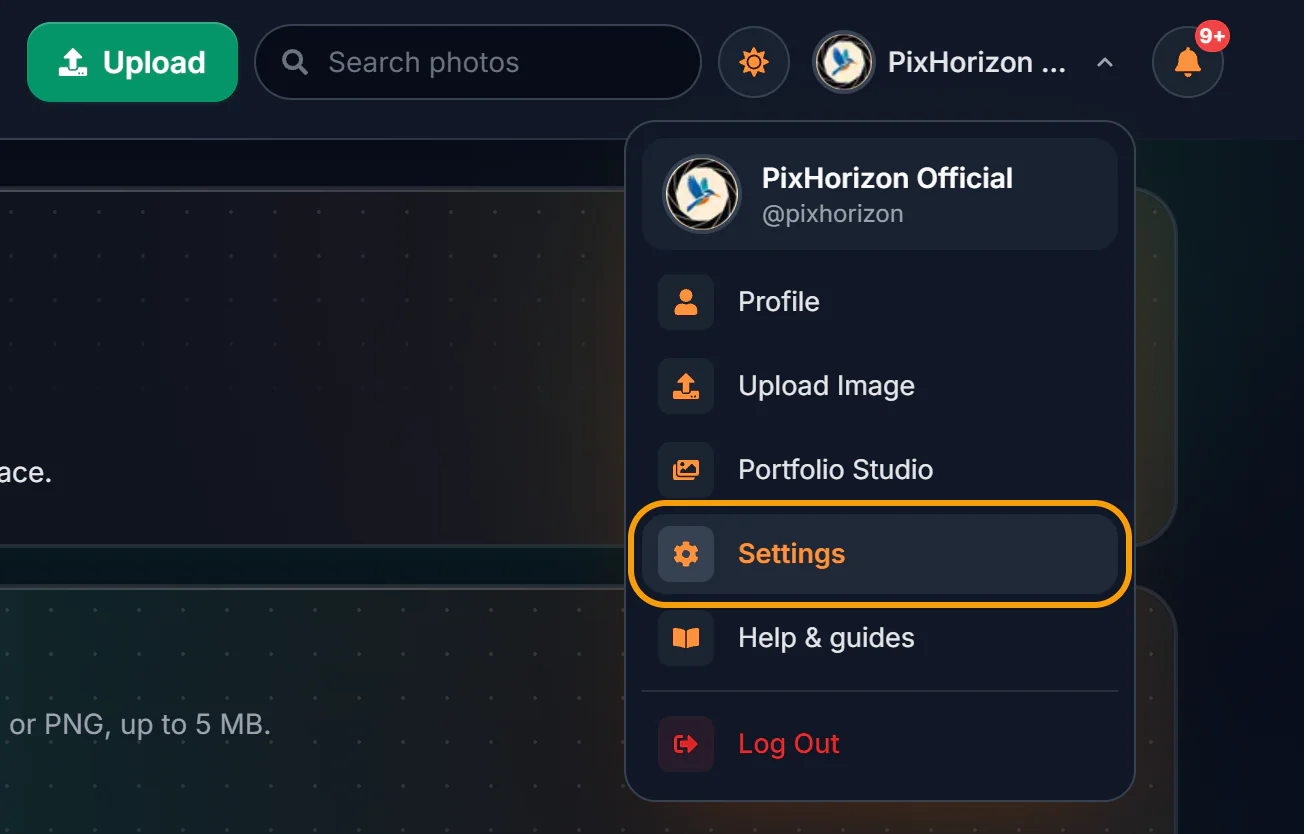
You need to be logged in. Click your profile picture in the top-right corner of any page (on wide screens your name is shown next to it) and choose Settings, or go straight to pixhorizon.com/settings.
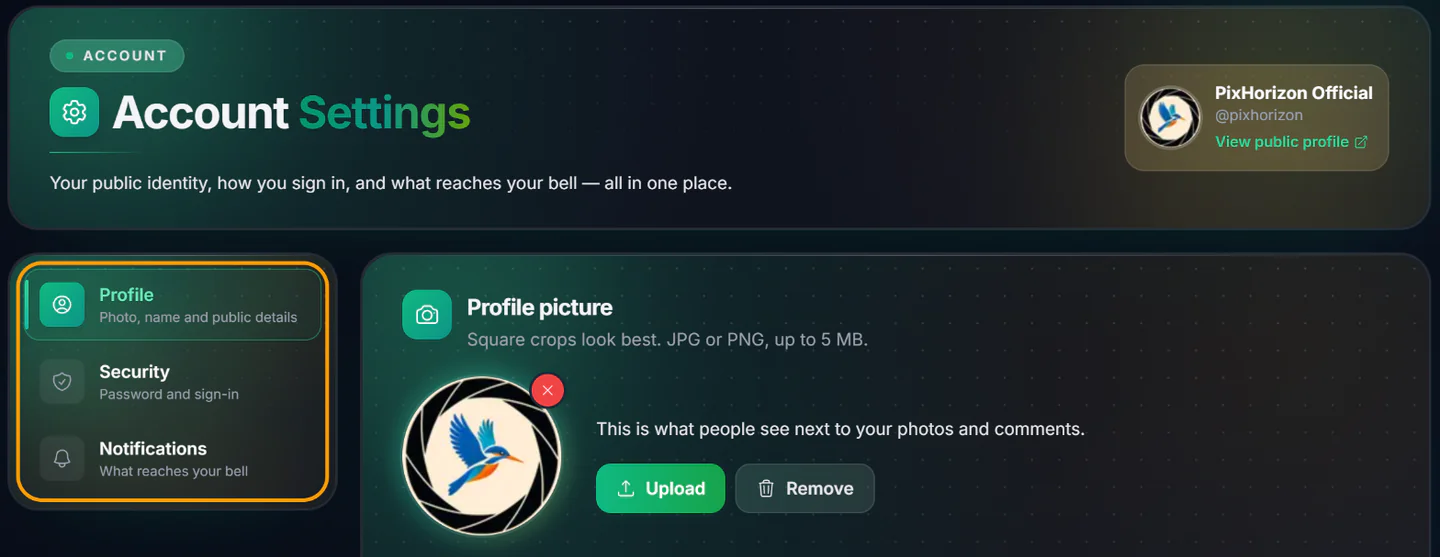
Settings is split into three tabs:
- Profile: your picture, name, username, location, Instagram and bio.
- Security: your password.
- Notifications: which notifications reach the bell in the header.
On a computer the tabs are listed down the left side of the page. On a phone or tablet they sit in a row at the top; swipe the row sideways if one is cut off. The card at the top of the page shows your current picture, name and username, with a View public profile link to check how others see you.
Change your profile picture#
Your profile picture appears next to your photos, your comments and on your profile page. It is on the Profile tab, which opens first.
Choose an image
Click Upload, or click the round picture itself, and pick an image from your device. It must be a JPG or PNG file of 5 MB or less.
Crop it
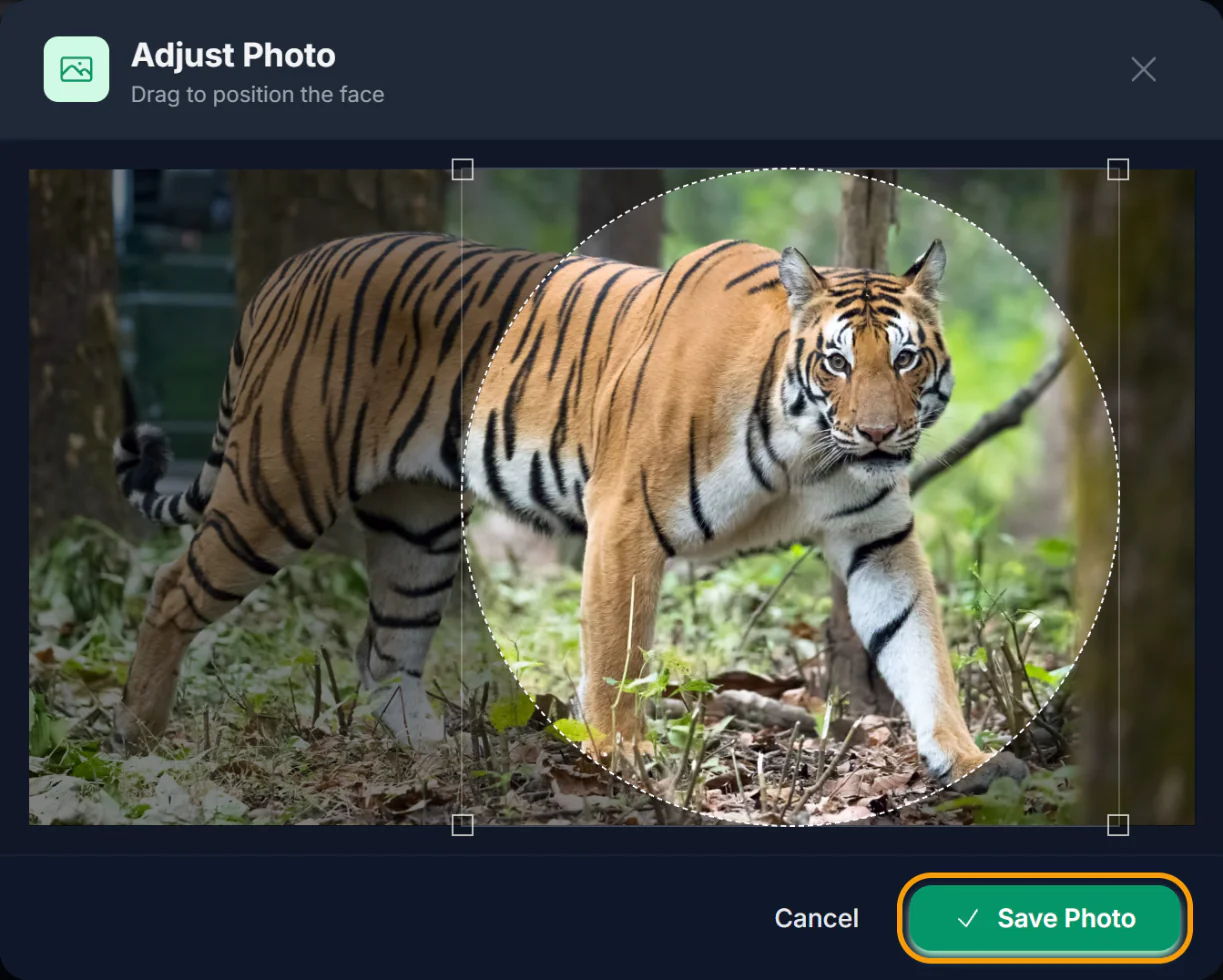
An Adjust Photo window opens with a round crop area over your image. Drag the circle to choose what is shown, and drag the square handles at its corners to make it bigger or smaller. Click Save Photo when it looks right, or Cancel to pick a different image.
Save your changes
Your new picture now shows with a “New picture staged” label, but it is not saved yet. Click Save changes in the bar at the bottom of the page to apply it. Before saving, you can click Choose another to try a different image, or Discard to go back to your current picture.
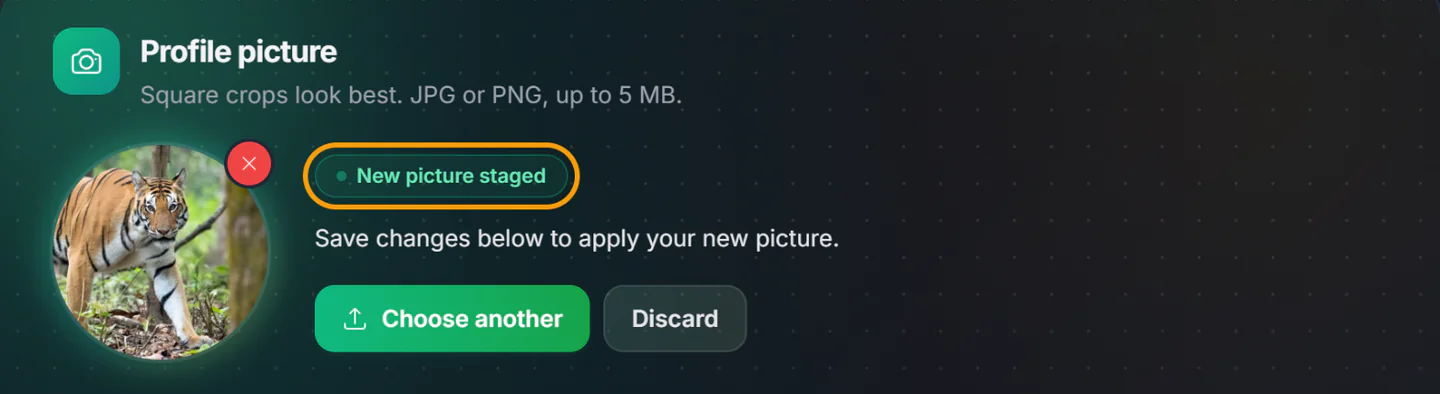
Save Photo only gets the picture ready. It is saved with Save changes.
Edit your name, username and bio#
Below your picture on the Profile tab, the Identity section holds how you are named and found:
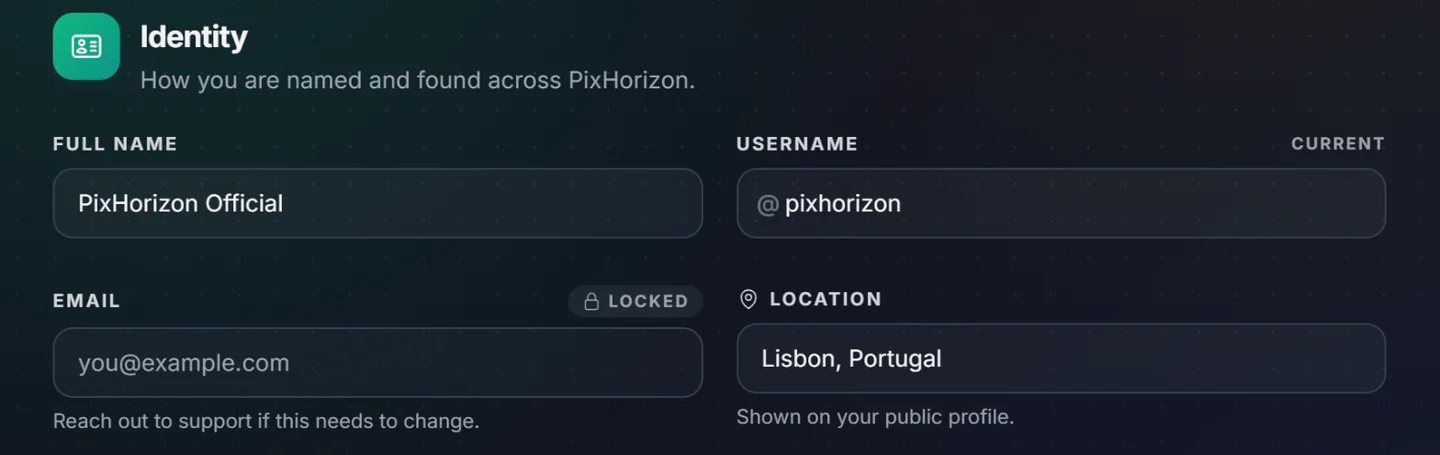
- Full name (required): your display name, shown on your profile and next to your photos. Up to 100 characters, in any language.
- Username (required): your unique handle, and the address of your profile (pixhorizon.com/user/username). See the rules below.
- Email: shown for reference and marked Locked. It can't be changed here; if it needs to change, contact us.
- Location (optional): where you are based, such as a city and country. Shown on your public profile. Up to 100 characters.
Under it, Your story holds the extras for your profile:
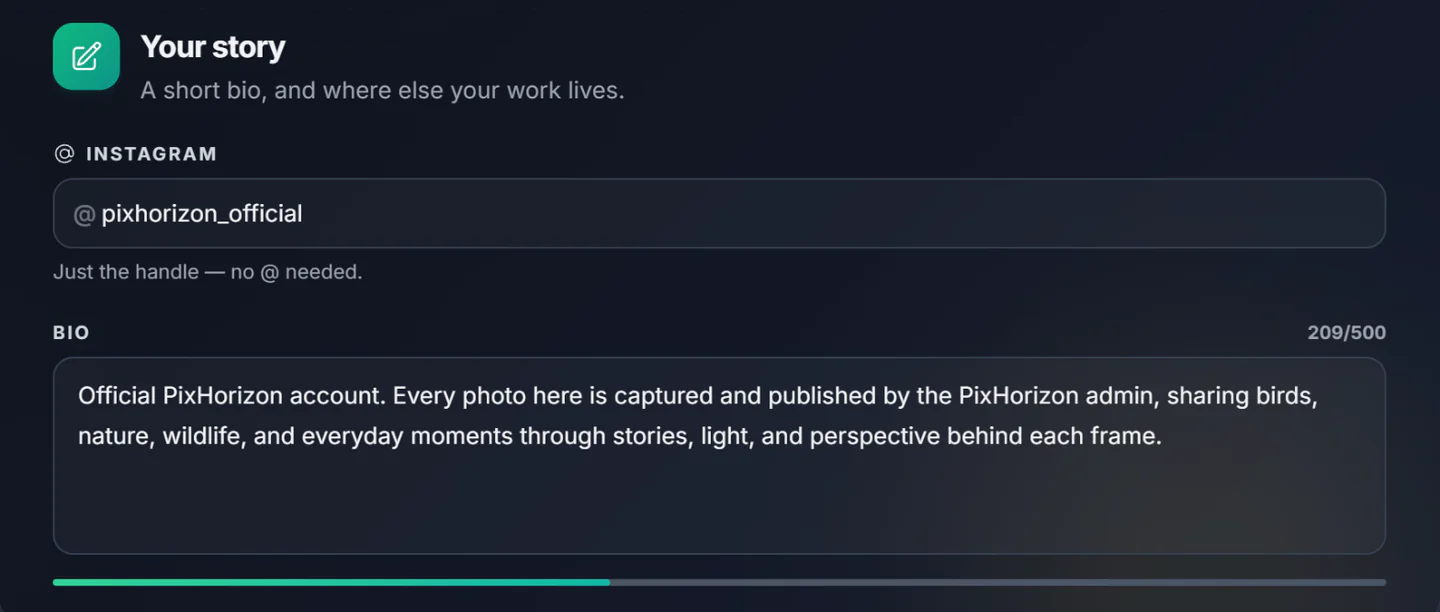
- Instagram (optional): your Instagram handle. Your profile shows it as a link to your Instagram page. Type the handle only, such as yourusername, without the @ and without a full link, or the link won't open the right page.
- Bio (optional): a few lines about you and your photography, shown on your profile. Up to 500 characters; the counter above the box and the bar under it turn amber and then red as you get close to the limit.
Username rules
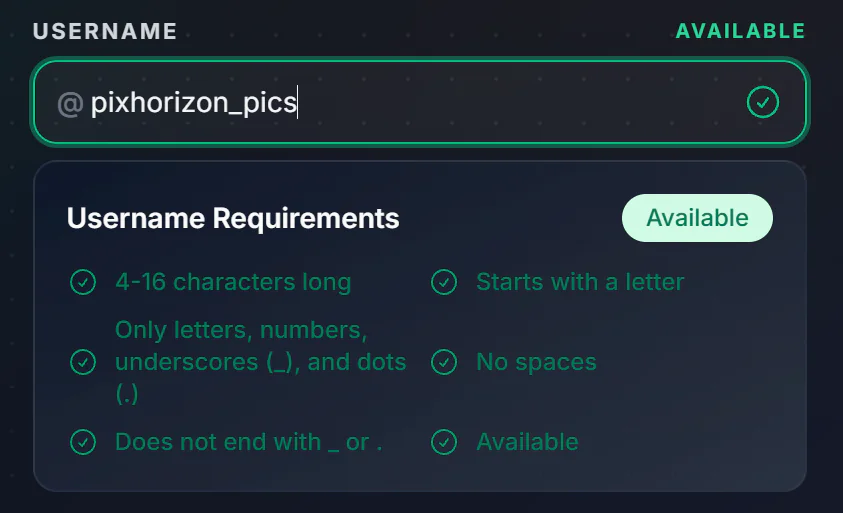
While you type a new username, a checklist shows which rules it meets. A username must:
- be 4 to 16 characters long
- start with a letter
- use only letters, numbers, underscores (_) and dots (.), with no spaces
- not end with _ or .
- not already be taken by someone else
Characters that aren't allowed are simply skipped as you type. After a short pause, the field is marked Available with a green tick, or Taken with a red cross. While a username is taken or breaks a rule, the Save changes button stays greyed out. Usernames are saved in lowercase, so SkyWatcher becomes skywatcher.
Save your profile
Nothing on the Profile tab is saved until you click Save changes in the bar at the bottom of the page. The bar stays in view while you scroll: it reads “You have unsaved changes” while there is something to save, and “Everything is up to date” once there isn't. Your picture and your details are saved together, and you will see a “Profile updated successfully!” message.

Change or set your password#
Open the Security tab. What you see depends on how you created your account.
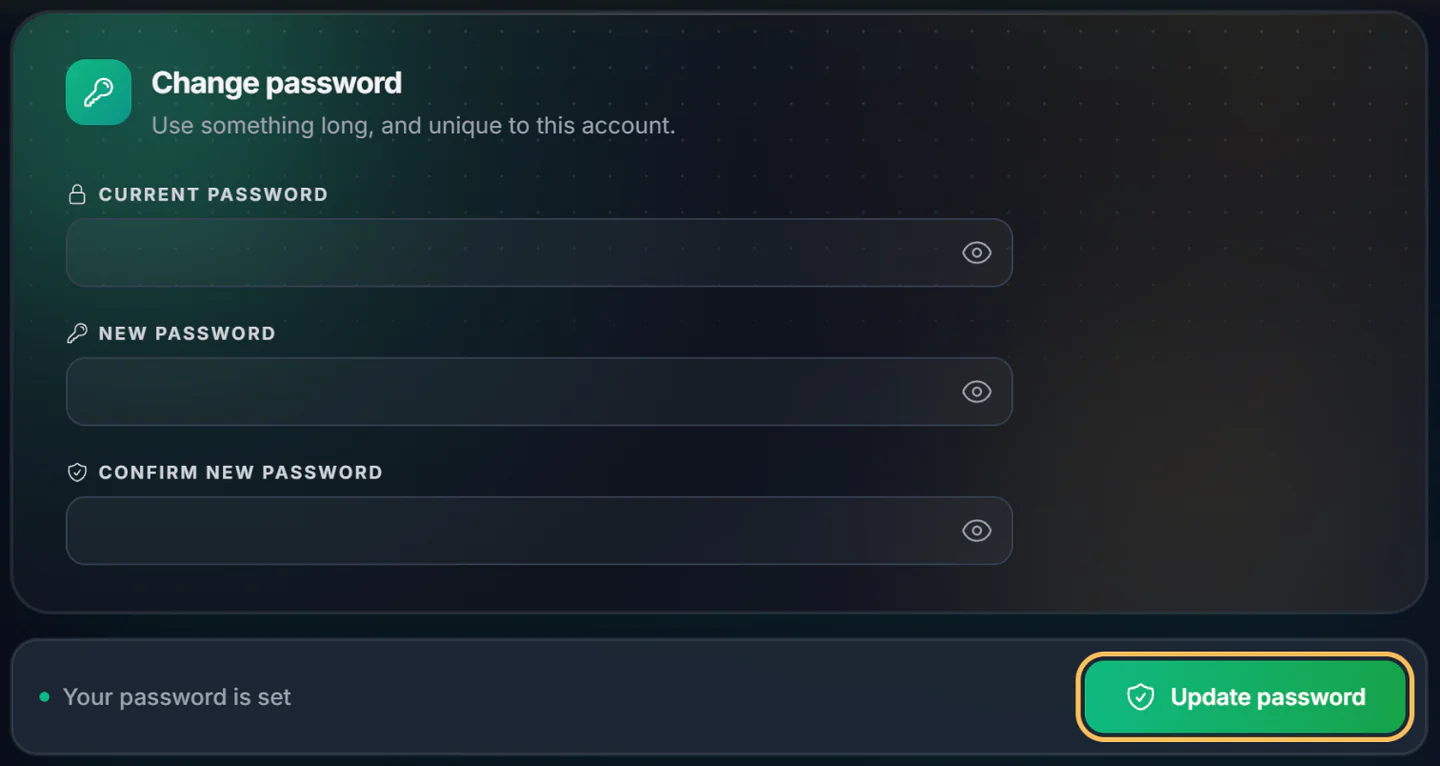
Change your password
Enter your current password
Type the password you use to log in today in Current password. Click the eye icon in any password box to show what you typed, and click it again to hide it.
Choose a new password
Type it in New password. A strength meter (Weak, Medium or Strong) and a checklist appear as you type. A password must have:
- between 8 and 128 characters
- an uppercase letter and a lowercase letter
- a number
- a special character, such as ! @ # or ?
It must also be different from your current password.
Confirm and update
Type the new password again in Confirm new password; it shows “Passwords match” when both are the same. Then click Update password at the bottom of the page. You will see “Password changed successfully!” and the boxes are cleared. Use the new password the next time you log in.
Signed up with Google? Set a password
If you created your account with Continue with Google, it has no password yet, so the Security tab shows Set a password instead, with no Current password box. Setting one is optional. Fill in New password and Confirm new password with the same rules as above, then click Set password.
From then on you can log in either way: with Google as before, or with your email address and the new password. The next time you visit the Security tab it shows the usual Change password form.
Choose your notifications#
The bell in the header lets you know when people interact with you and your photos. Open the Notifications tab to pick which kinds you want. Each one has a switch, and they are all on until you turn them off:
- Likes: someone likes one of your photos.
- Comments: someone comments on one of your photos.
- Comment likes: someone likes a comment or reply you left.
- Replies: someone replies to a comment you left.
- New followers: someone starts following you.
- Saves to collections: someone adds one of your photos to a public collection. Saves to private collections never notify you.
- Milestones: one of your photos reaches Emerging or Spotlight.
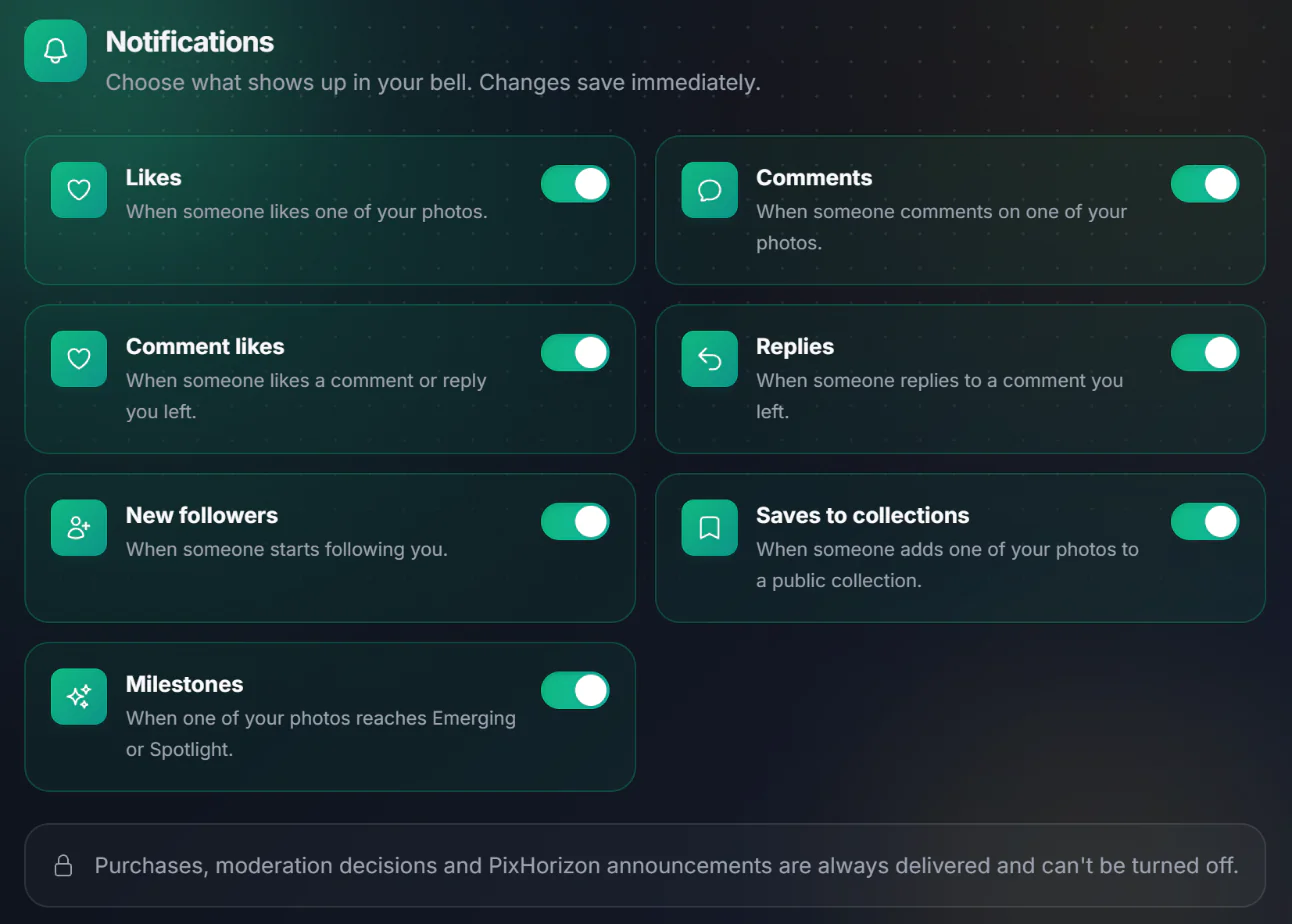
Click a switch to turn that kind on or off. There is no Save button here: each change is saved the moment you click, and the card turns green when it is on and grey when it is off. If a change can't be saved, the switch flips back and a message asks you to try again.
A few notifications can't be turned off, because they are about your account rather than activity: purchases, decisions by the PixHorizon team about your content, and PixHorizon announcements.
Common questions#
I forgot my current password. How do I change it?
Log out, then click Forgot password? on the login page. We will email you a link to choose a new password, without needing the old one.
Can I change the email address on my account?
Not from Settings. Please contact us from the address on your account and tell us the new one.
I saved my profile but my profile page still shows the old details.
Your public profile can take a few minutes to catch up. Reload it after a short while.
It says I've made too many changes. What now?
To keep accounts safe, there is an hourly limit: 10 profile saves, 20 picture changes and 5 password change attempts (a wrong current password counts as one). Wait a while and try again.
Can I stop notifications by email?
The switches on the Notifications tab only control the bell on PixHorizon; activity like likes, comments and follows is never sent by email. We only email you about your account: verifying your address, resetting your password, your orders, and changes the PixHorizon team makes to one of your photos.