Collections let you group photos into themed sets, such as your favourite sunsets, a trip, or shots that inspire you. You can save your own photos and photos by other photographers, keep a collection public for everyone to browse, or keep it private for yourself. This guide covers everything you can do with them.
Create a collection#
There are two ways to create a collection, and you need to be logged in for both. Start from your profile when you want to set everything up first, or create one on the spot while saving a photo.
From your profile
Open your Collections tab
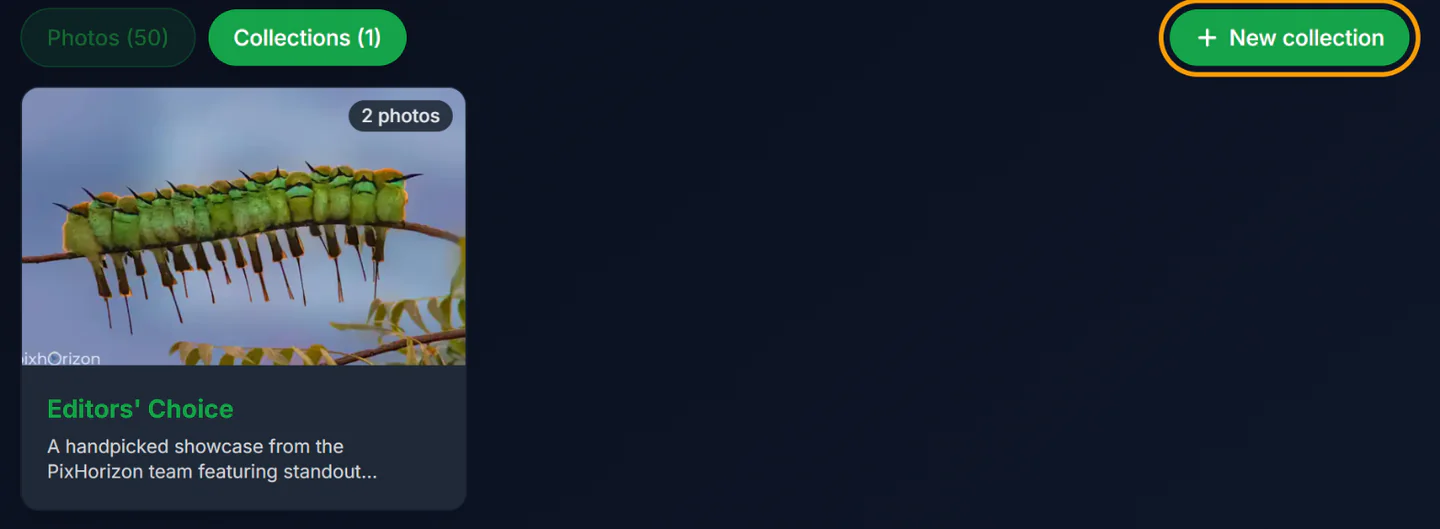
Click your profile picture in the top-right corner, choose Profile, and switch to the Collections tab. Click New collection (on phones it is a round + button). If you don't have any collections yet, you can also click Create your first collection in the middle of the tab.
Fill in the details
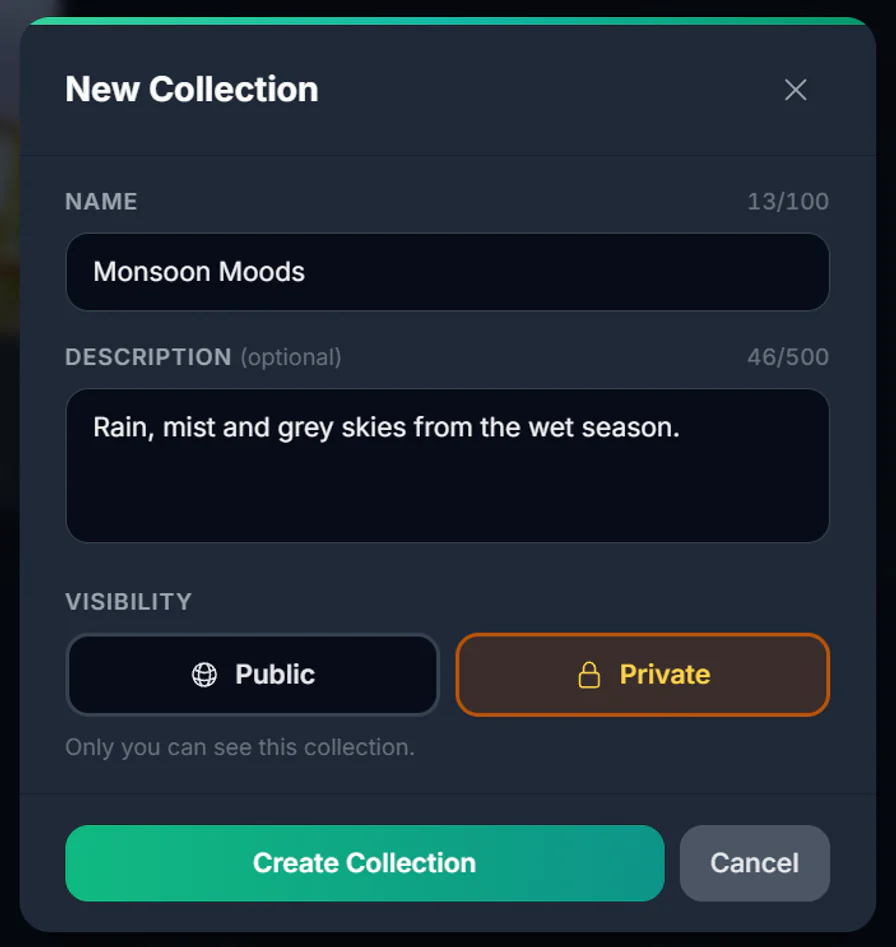
- Name (required): up to 100 characters. Each of your collections needs a different name, and capitals and accents don't count, so “Café” and “cafe” are the same name.
- Description (optional): up to 500 characters on what ties the photos together.
- Visibility: Public (anyone can see it on your profile) or Private (only you can see it). The line under the buttons reminds you which one you picked.
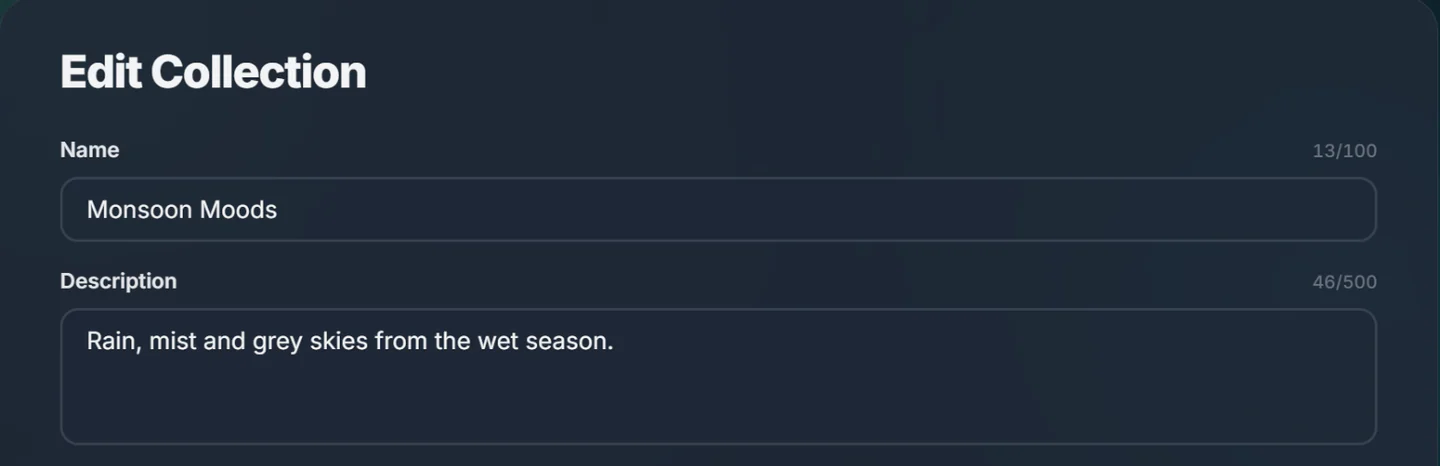
The numbers above each field, such as 13/100, count the characters you have used. They turn amber as you get close to the limit and red if you go over it, and the button stays disabled until the text fits.
Click Create Collection
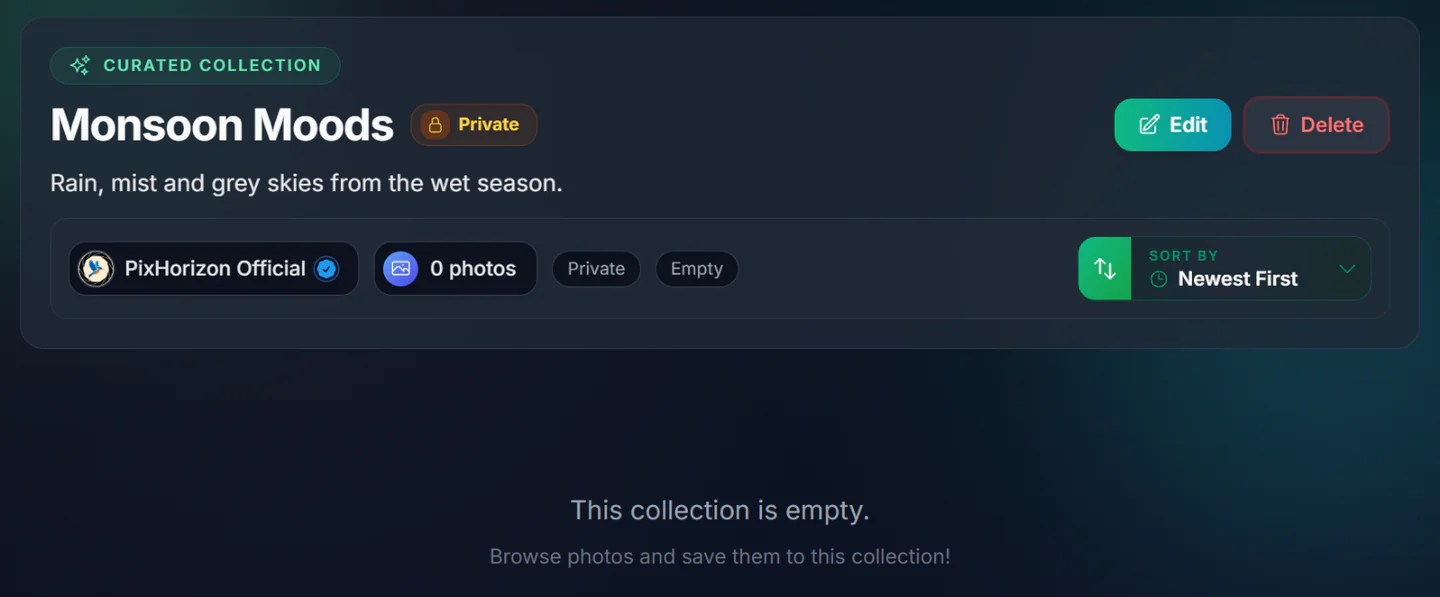
The new collection opens straight away. It starts empty, so the next step is to add photos, as described in Add photos to a collection.
While saving a photo
This way the collection starts with that photo already in it.
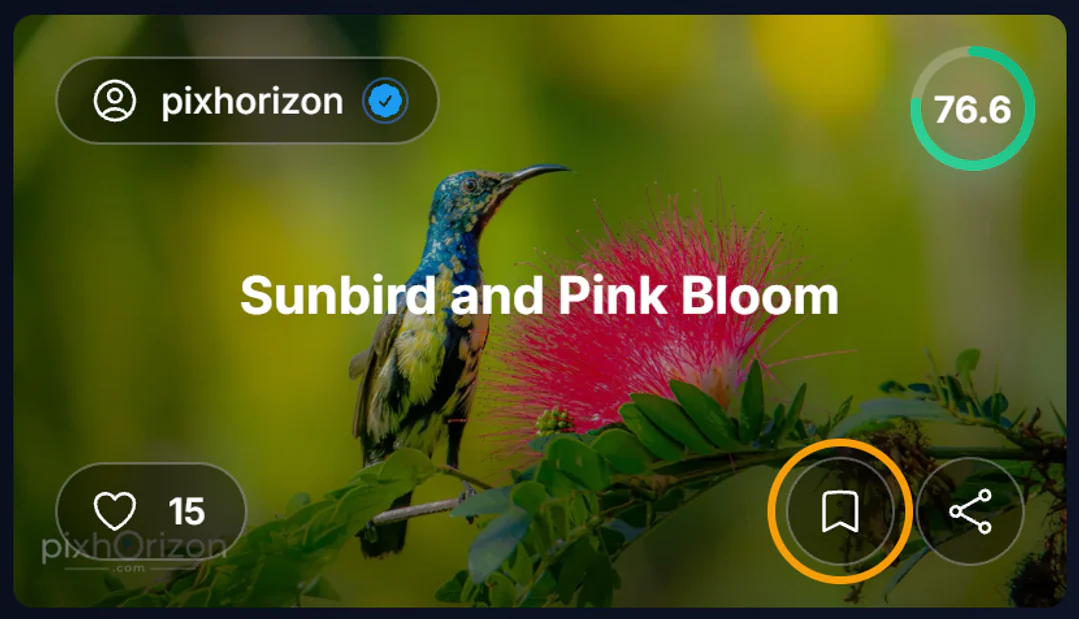
Click Save on any photo
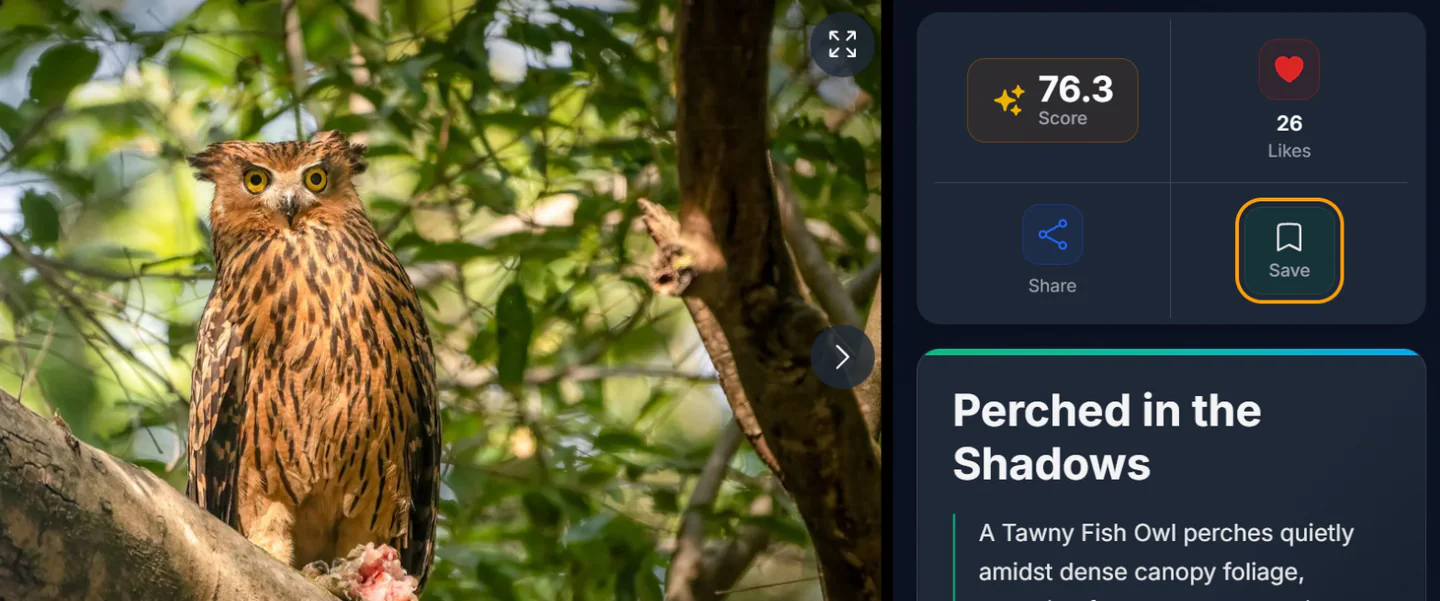
On a photo's page, click Save (the bookmark icon) in the panel beside the photo. On phones the panel is below the photo.
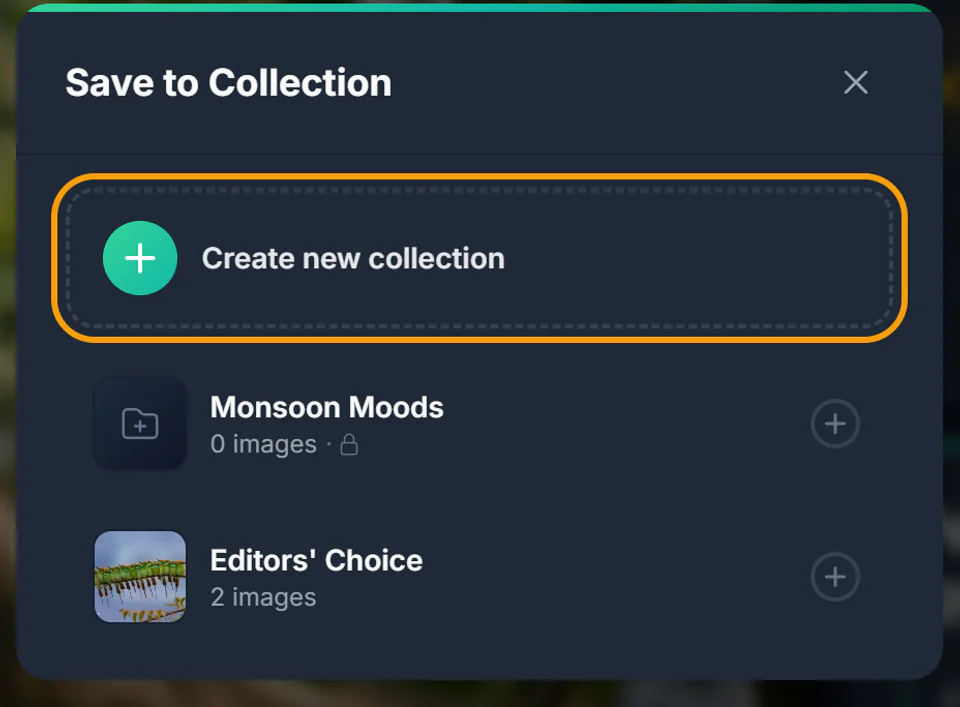
Choose Create new collection
The Save to Collection window lists the collections you already have. Click Create new collection at the top.
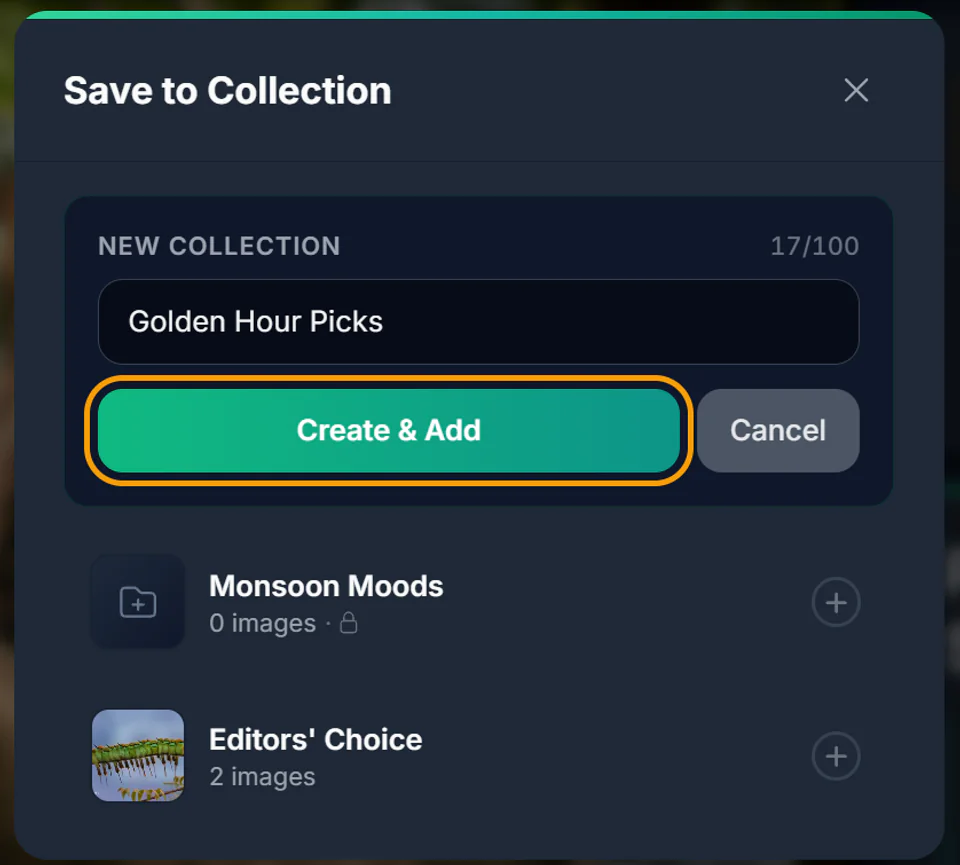
Name it and click Create & Add
Type a name, then click Create & Add or press Enter. The same 100-character limit and counter apply.
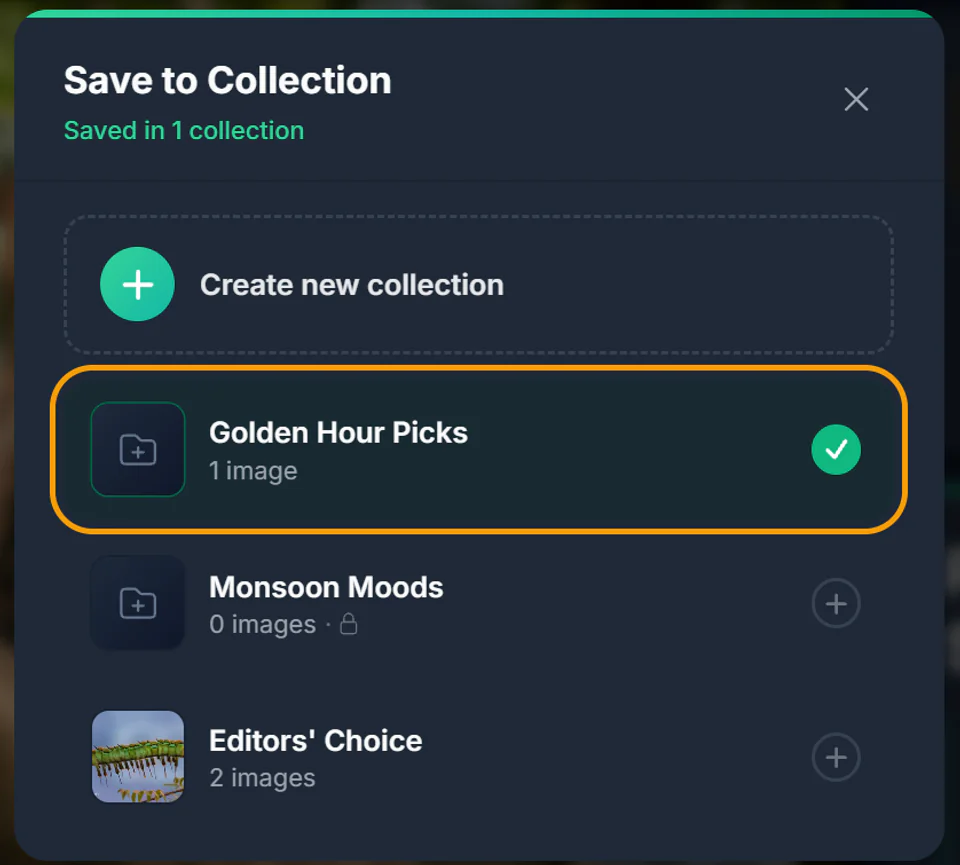
The new collection appears in the list with a green tick, which means the photo is in it.
Add photos to a collection#
You can save a photo from its own page, as above, or straight from a photo grid without opening it. In any gallery, search result or profile, hover over a photo and click the bookmark icon in the row of buttons at its bottom right.
In the Save to Collection window, click the collection you want. A green tick shows the photo has been added. You can tick more than one collection, and the line under the title tells you how many the photo is saved in. Press Esc or click the × when you are done.
A collection can hold up to 200 photos, and you can have up to 25 collections. Only you can add photos to your collections.
Remove a photo from a collection#
Removing a photo uses the same Save to Collection window. Open the photo (you can click it from inside the collection), click Save, then click the ticked collection. When you hover over it, the tick turns into a red ×. On a touch screen, just tap it.
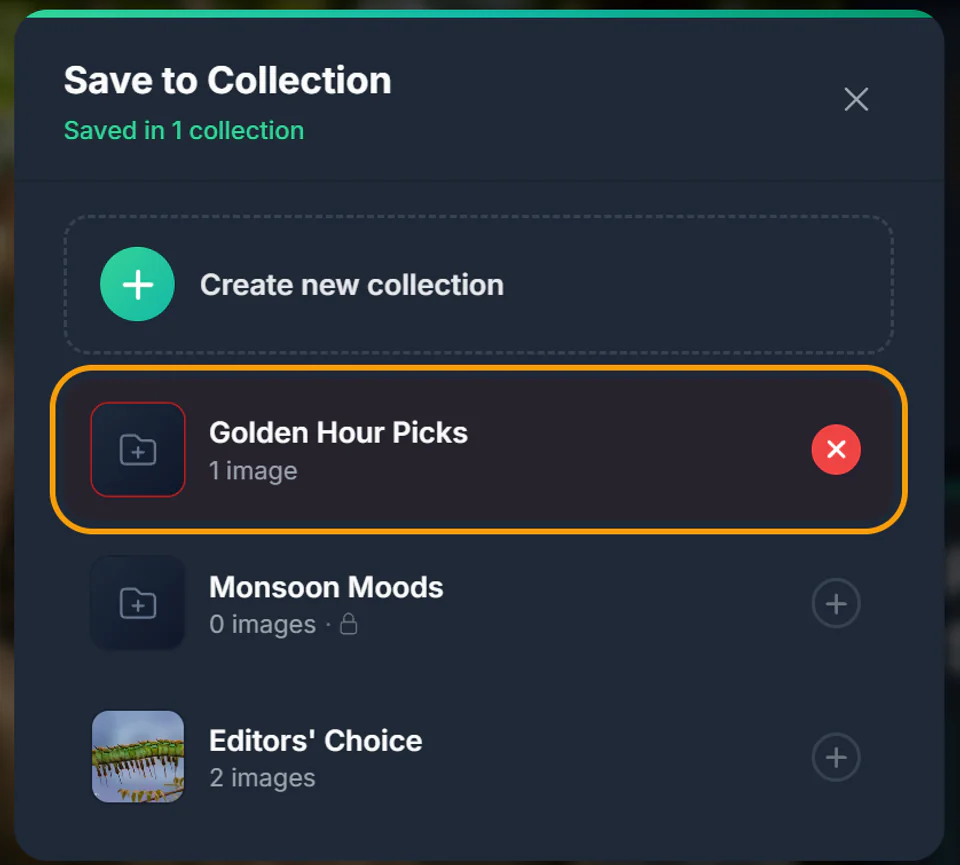
The photo leaves that collection only. It stays on PixHorizon and in any other collections you saved it to.
Find your collections#
Open your profile (click your profile picture in the top-right corner, then Profile) and switch to the Collections tab, the same place as the New collection button. Every collection you own is listed here with its cover and photo count. Private ones carry a Private label in the corner of their card, and only you can see them.
Click a collection to open it. Public collections with at least one photo are also shown to everyone on the Collections page.
Rename, describe and pick a cover#
Open the collection and click Edit
When you view one of your own collections, an Edit and a Delete button appear at the top right. Other people never see them.
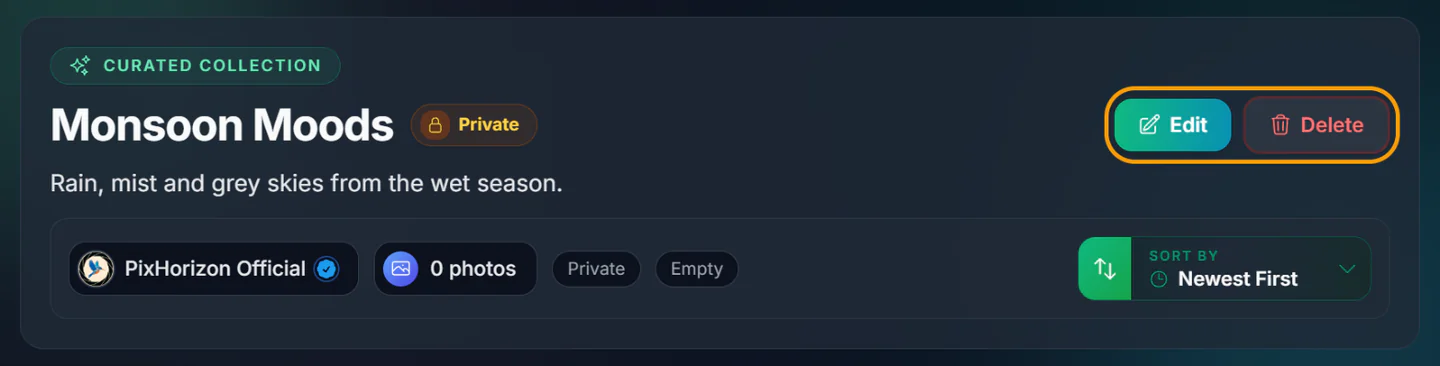
Change the name and description
The form opens with the current details. Change the Name (up to 100 characters) and add or edit the Description (up to 500). The counters beside each label work the same way as when you create a collection. The description appears under the title and on the collection's card.
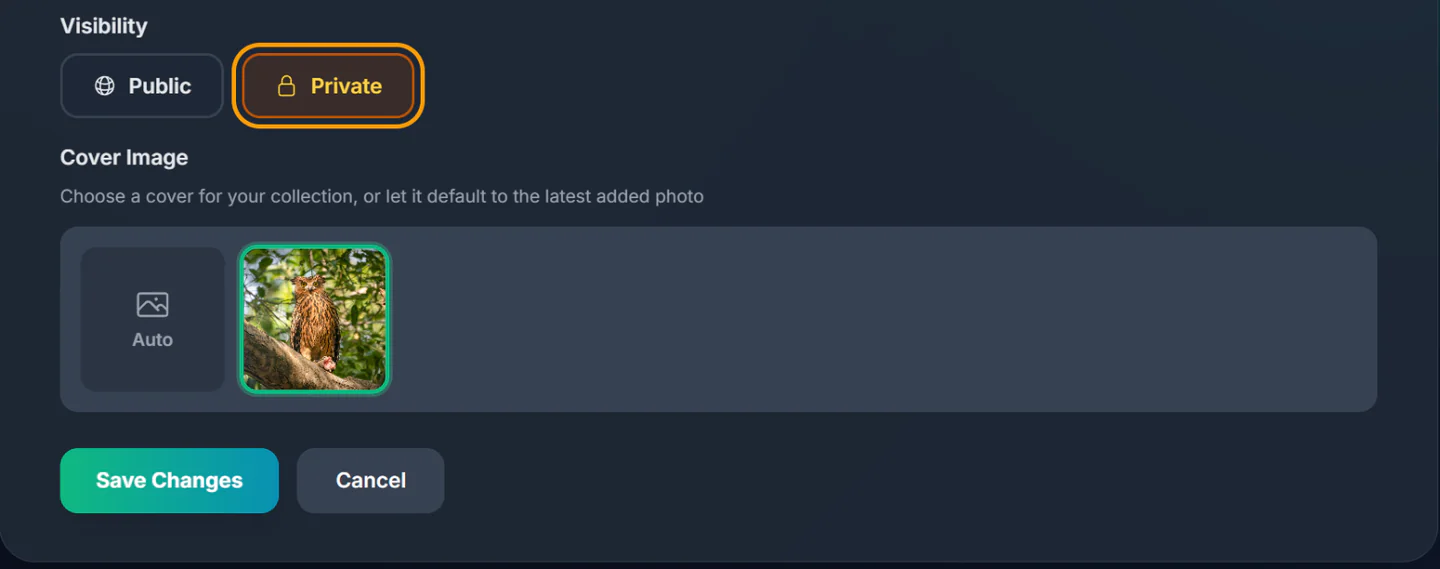
Choose a cover image
Under Cover Image, click the photo you want on the collection's card. Choose Auto to use the most recently added photo instead. Auto picks it when you save, so the cover won't change on its own when you add more photos later. Until you choose, a collection's cover is the first photo you added. This option appears once the collection has at least one photo.
Save
Click Save Changes. You will see a “Collection updated!” message. Click Cancel to leave without changing anything.
Make a collection public or private#
Open the collection, click Edit, and under Visibility choose:
- Public: anyone can open it, it shows on your profile, and it can appear on the Collections page.
- Private: only you can see it. It is hidden from your profile for everyone else, and anyone opening its link sees a “Collection Not Found” page. PixHorizon admins can still open it.
Click Save Changes. A private collection shows a Private label next to its name.
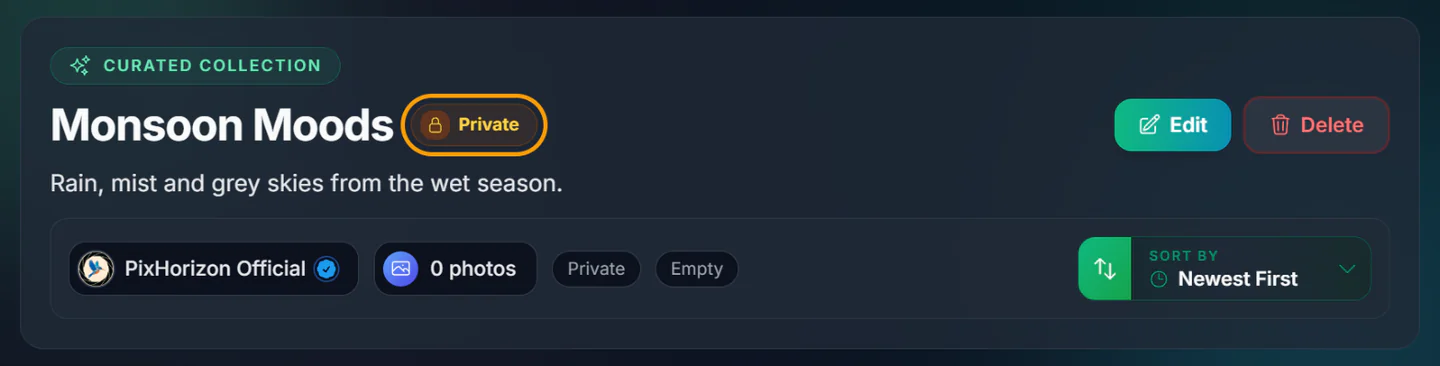
You can switch between public and private as often as you like.
Delete a collection#
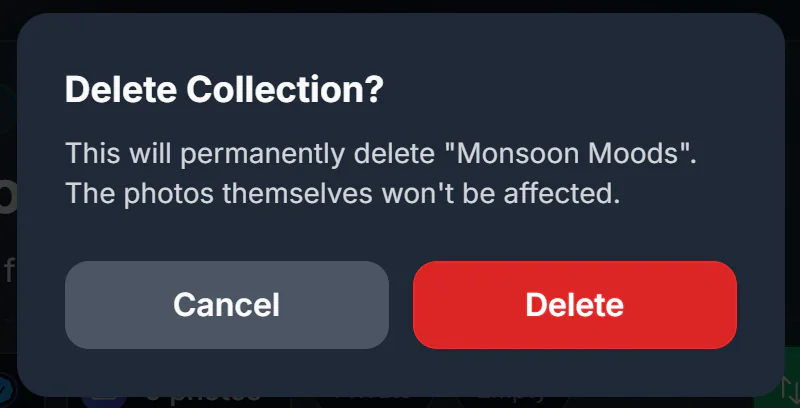
Open the collection, click Delete at the top right, then confirm with Delete. You are taken back to the Collections tab on your profile.
Common questions#
Does the photographer know I saved their photo?
Only if the collection is public. Saving a photo to a public collection sends the photographer a notification that you saved their photo to a collection, unless they have turned off Saves to collections in their notification settings. Saving it to a private collection sends nothing, so nobody finds out what you keep there.
Removing the photo from your last public collection, or deleting that collection, withdraws the notification. Switching the collection to private does not: notifications already sent stay. Saving never changes a photo's Horizon Score.
What happens if a photo in my collection is deleted?
It disappears from your collection automatically, because collections only show photos that are still on PixHorizon.
Can I reorder the photos in a collection?
Not by hand, but you can change the order you view them in with the Sort by menu on the collection page: newest or oldest, most liked, or Horizon Score. Newest and oldest go by when each photo was uploaded, not when you saved it.
Why can't I create another collection?
Each account can have up to 25 collections. Delete one you no longer need to make room. If you have created a lot of collections in a short time, wait an hour and try again.