Spotted a typo in a title, picked the wrong category, or want to tidy up your portfolio? Everything you need is in Portfolio Studio, your private workspace for the photos you have published. This guide walks through editing a photo's details and deleting photos, one at a time or in bulk.
Open Portfolio Studio#
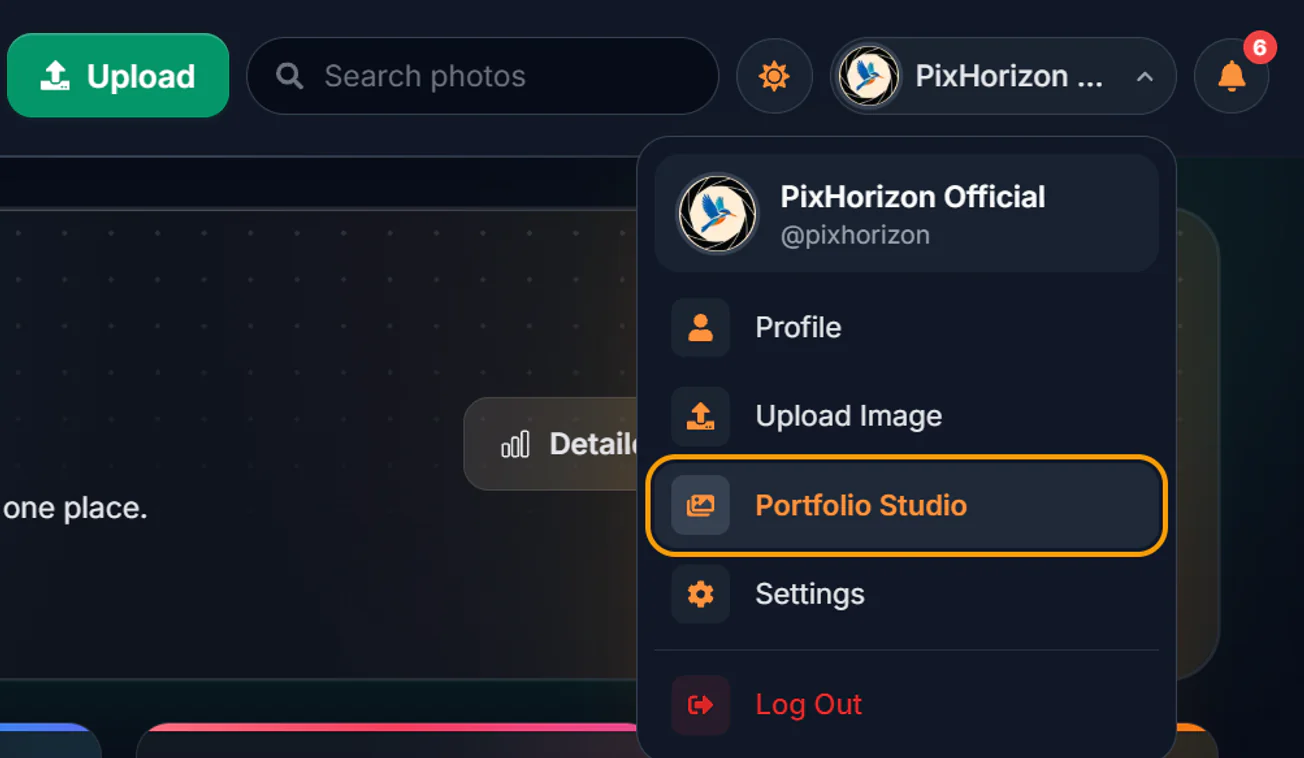
You need to be logged in. Click your profile picture in the top-right corner of any page (on wide screens your name is shown next to it) and choose Portfolio Studio, or go straight to pixhorizon.com/portfolio-studio.
The studio lists every photo you have uploaded. With a large portfolio, use the filter bar to narrow it down: search by title, description or tag, pick a category, or change the sort order.
Edit a photo's details#
Find the photo and open the editor
Hover over the photo card to reveal three buttons in its bottom-right corner: View (eye), Edit details (pencil) and Delete (bin). Click the pencil.
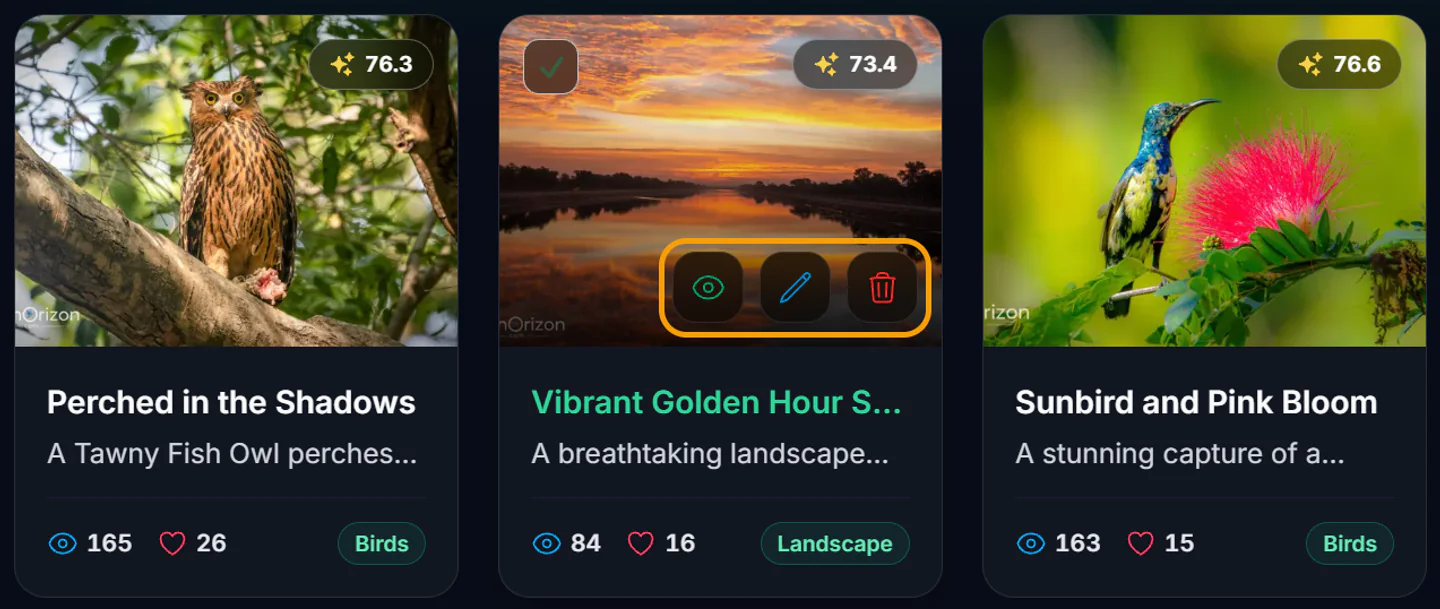
On phones these buttons are always visible. On a tablet, tap the photo once to show them. Change what you need
The editor opens with the photo's current details filled in:
- Title (required): the name shown on the photo page and on every gallery card.
- Category (required): decides which gallery the photo appears in. If you choose Others, a Specify category box appears so you can say what it is, such as Food or Portrait.
- Description (required): the story behind the shot. It can't be left empty.
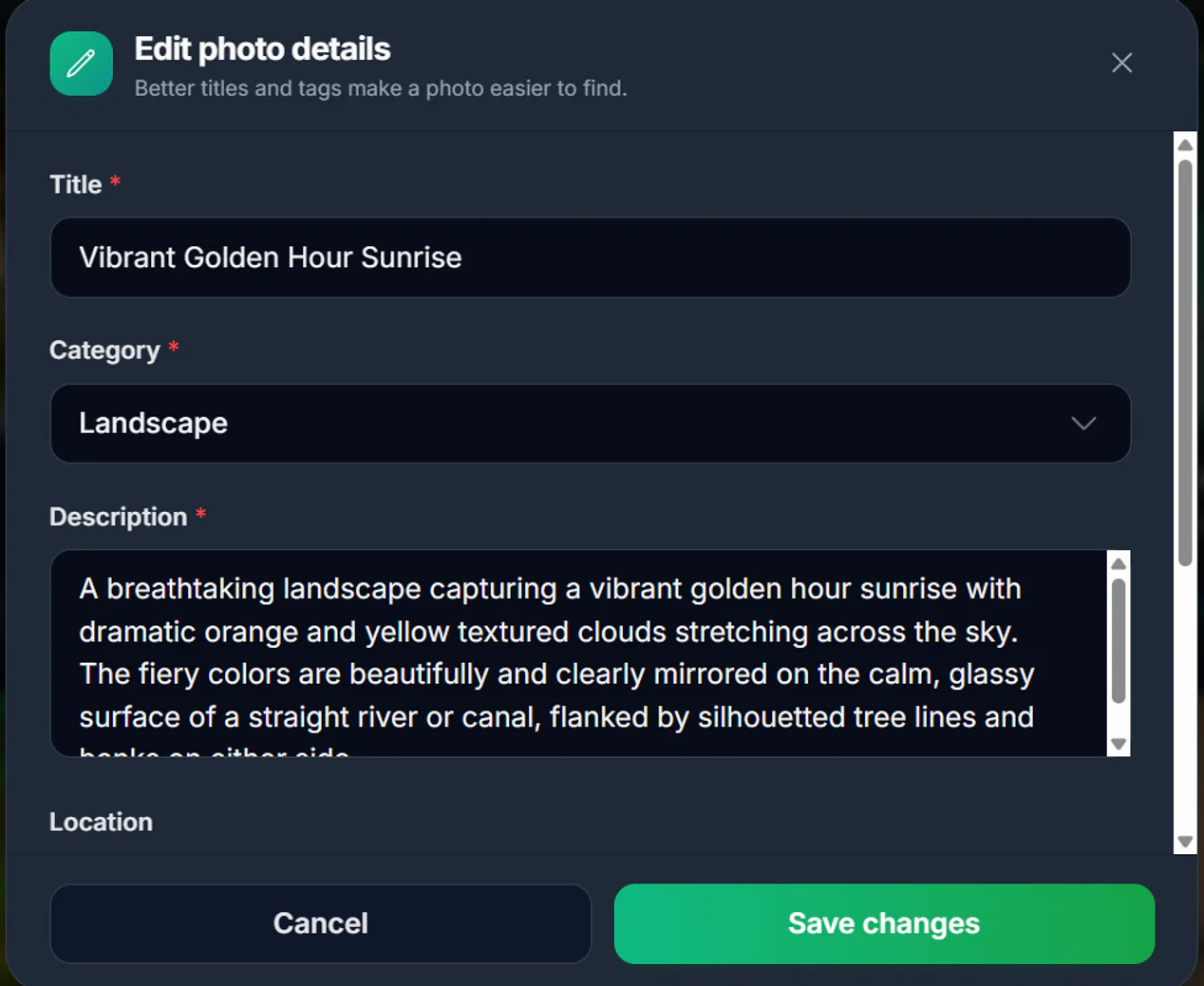
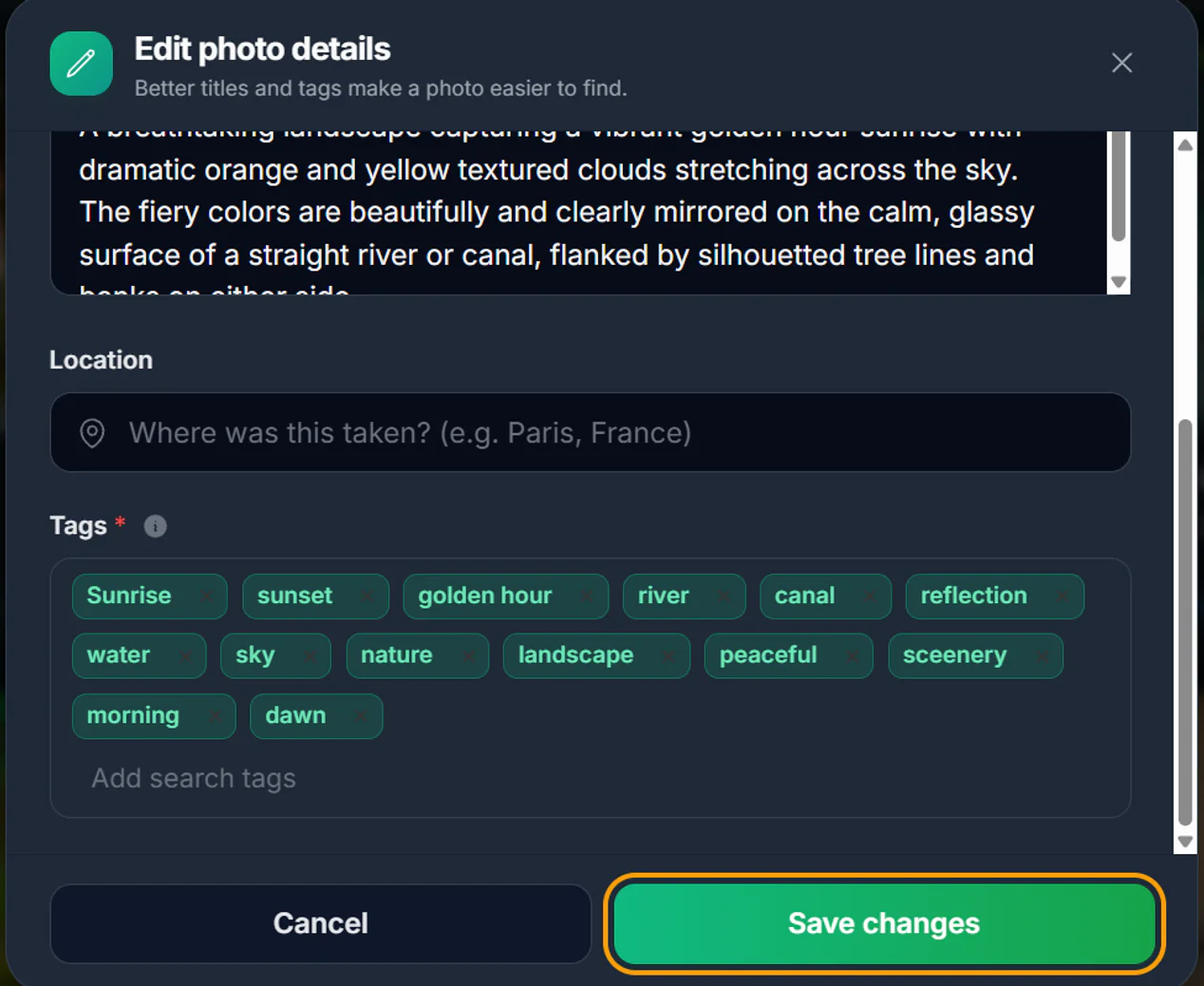
Scroll down inside the window for the rest:
- Location (optional): where the photo was taken.
- Tags (required): the keywords people search for. Type a word and press Enter or , to add it, and click the small × on a tag to remove it. Every photo needs at least one tag. You can add up to 30, and duplicates are skipped.
Save your changes
Click Save changes. You will see a “Photo updated successfully” message, and the new details show up in Portfolio Studio right away. Galleries and the photo's own page can take a few minutes to catch up.
Changed your mind? Click Cancel, the × in the corner, or press Esc, and nothing is saved. Pressing Enter in the Title or Location box saves, the same as clicking Save changes.
Delete a photo#
Click the bin on the photo card
In Portfolio Studio, hover over the photo and click the red bin button, the third of the three buttons from the previous section.
Confirm
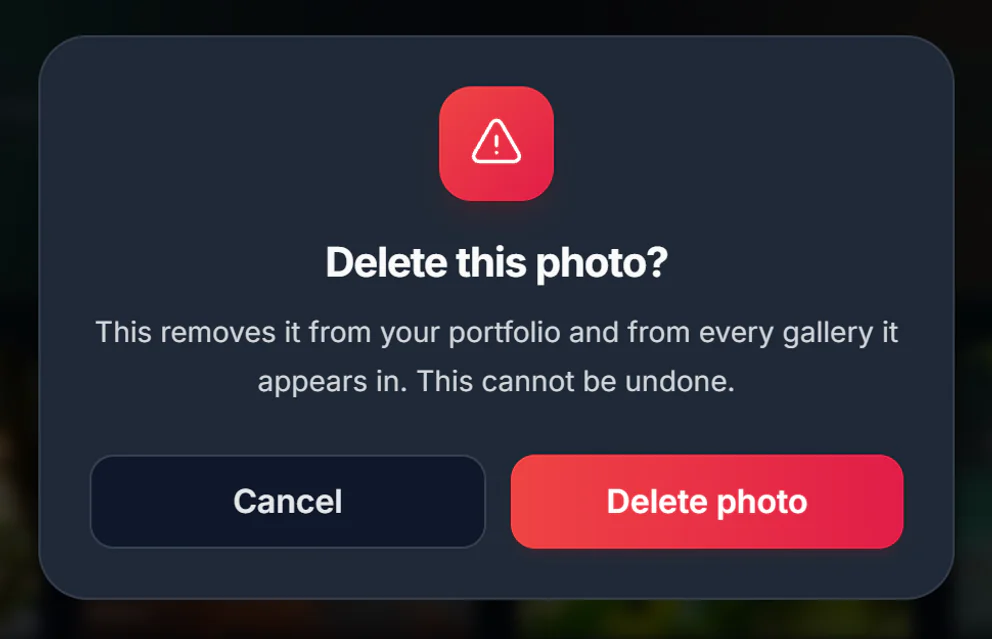
A confirmation window asks if you are sure. Click Delete photo to remove it, or Cancel to keep it.
Delete several photos at once#
Select the photos
Hover over a photo and tick the checkbox in its top-left corner (on phones the checkbox is always shown). Once one photo is ticked, every card shows its checkbox, and selected photos get a green outline. To select everything currently listed, click Select all in the filter bar. It only picks the photos that match your current search and category filter, so you can filter first and then select all.
Your selection is kept when you change the search or category, so photos you ticked earlier still count even when they are no longer on screen. The bar at the bottom always shows the total.
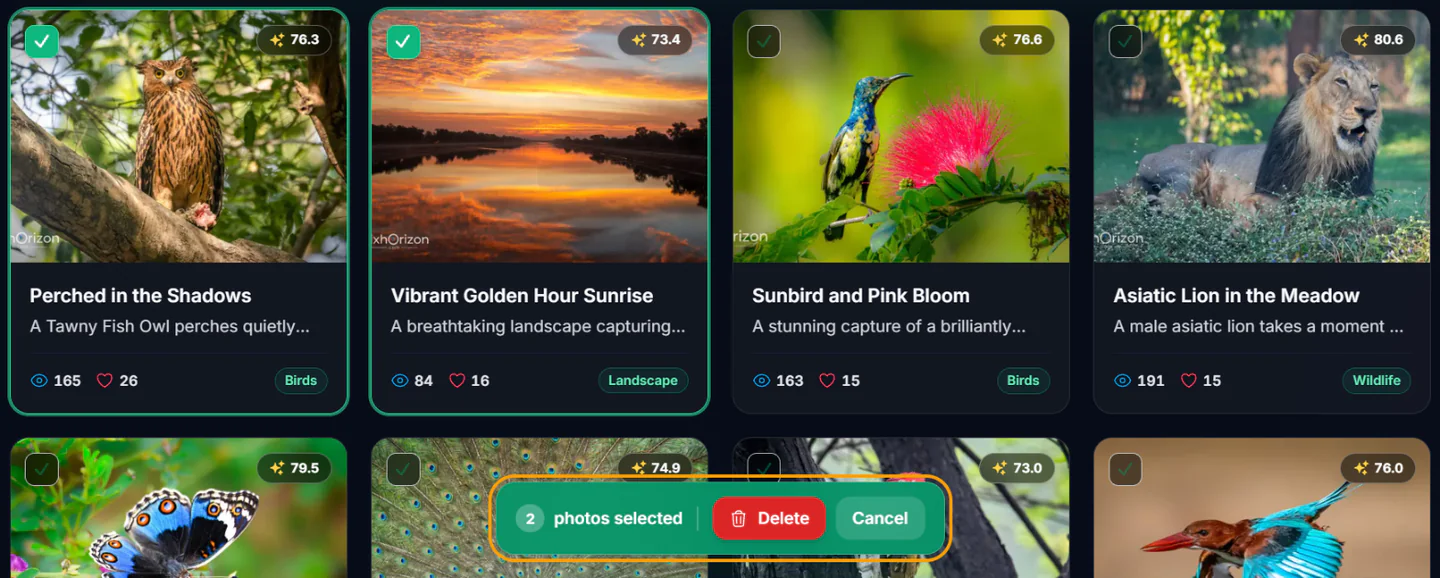
A bar at the bottom shows how many photos you have selected. Delete and confirm
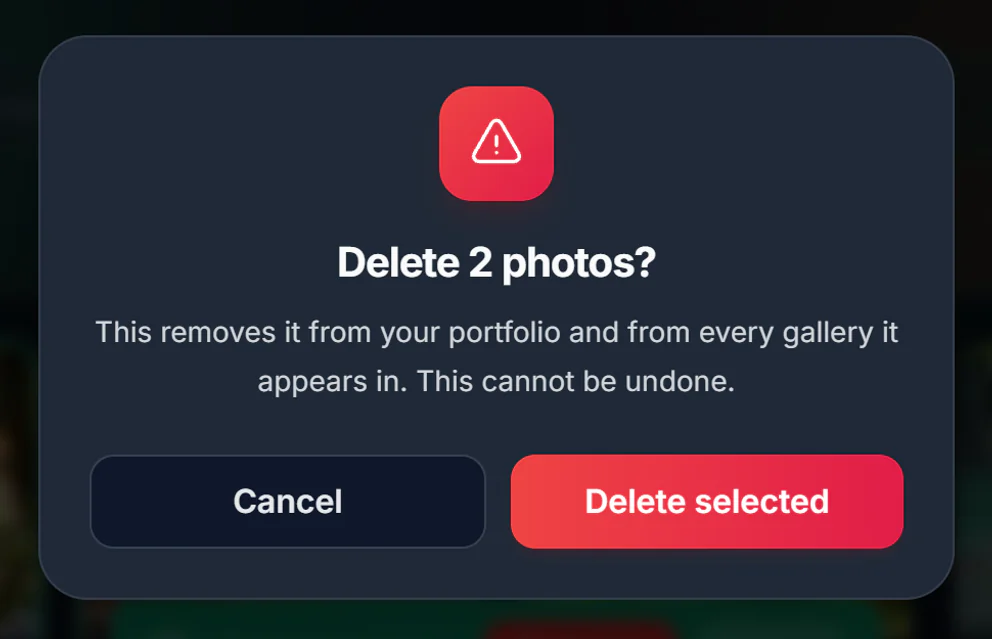
Click Delete in the bar at the bottom of the screen. The confirmation window shows how many photos will be removed. Click Delete selected to go ahead.
To back out, click Cancel in the bar. That clears your selection without deleting anything.
Common questions#
Can I replace the image itself but keep its details?
No. Editing changes the text details only. To use a different image, upload the new one and then delete the old one.
Does deleting a photo give me back an upload for today?
No. Every account can upload up to 20 photos per day, and that count resets at midnight UTC. Deleted photos still count towards the day they were uploaded, so deleting and re-uploading the same day uses up two of your 20.
Can I edit or delete someone else's photo?
No. Only the photographer who uploaded a photo can change or remove it, from their own Portfolio Studio. The PixHorizon team can also edit or remove a photo that breaks the rules, and lets the photographer know by email when it does. If you think a photo breaks the rules, please contact us.